MYOB from 1st March 2026 will require application developers to implement a system of "Granular Scopes" as part of the process. From MYOB's own documentation:
Granular Data Scopes
What are Granular Data Scopes?
When your app requests consent from a user, it will specify a set of scopes for the endpoints it needs access to. A summary of these scopes is shown to the user, clearly explaining what data your app will be able to access.
Give customers better consent and control over sensitive areas.
With MYOB’s granular data scopes, you request only the minimum access needed for each feature—nothing more. This gives your customers clearer consent and tighter control over sensitive areas like banking and payroll.
As you roll out features, our security-focused API follows least-privilege best practices and supports adding permissions over time via re-consent.
What will my customer see when reconsenting?
Once you make the necessary changes within your authorisation process, when the customer next requests an access token they will be sent through MYOB's consent flow that requires an admin to approve consent to a single ledger.
For those interested in the full details, see MYOB's web page here:
Scopes (drill down on each scope to see the endpoints included)
OAuth2.0 Authentication Now Requires Admin Access
Overview
Introduced in March 2025, but mandatory for all developers from March 2026, only Admin users of a MYOB company file can approve OAuth2.0 authentication requests. This update enhances security and aligns with best practices for data access permissions.
What Changed?
Previously:
Any company file user could approve OAuth2.0 authentication and grant consent.
Authentication applied to all online files to which the authenticating user had access
Now:
Only users with Admin-level access to the company file can complete the OAuth2.0 approval process.
Authentication applies to the selected company file only
You will be prompted by MYOB for annual renewal of authentication.
Upgrade steps for the new authorisation process
1. New DataWise program executable required
We have made a new version of the ProActive5.exe available on our website. This will need to be installed on your computer. Instructions to do this are available here: Upgrading DataWise ProActive application
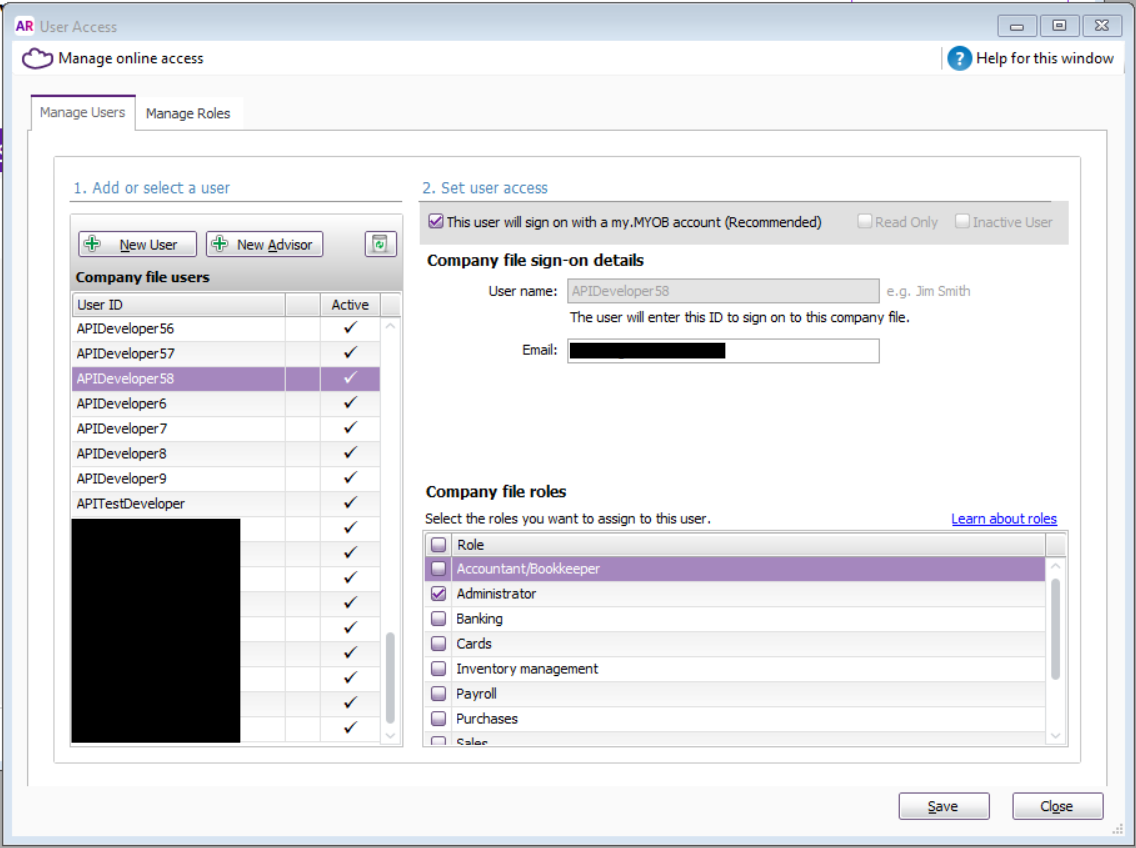
2. Check who has administrator access to your MYOB file
To check if you are an administrator:
AccountRight (Desktop or Online Library):
- Open your company file in AccountRight.
- Go to the Setup menu.
- If the User Access menu is visible, then you are a file Administrator
- If necessary, an administrator can log in and add the Administrator role to any non-admin user on a temporary basis.
3. Open DataWise, select a company file and go to [Setup]
After entering Setup, click Next, tick the license option, then click Next twice to arrive at the AR Cloud tab.
The new AR Cloud tab looks different:
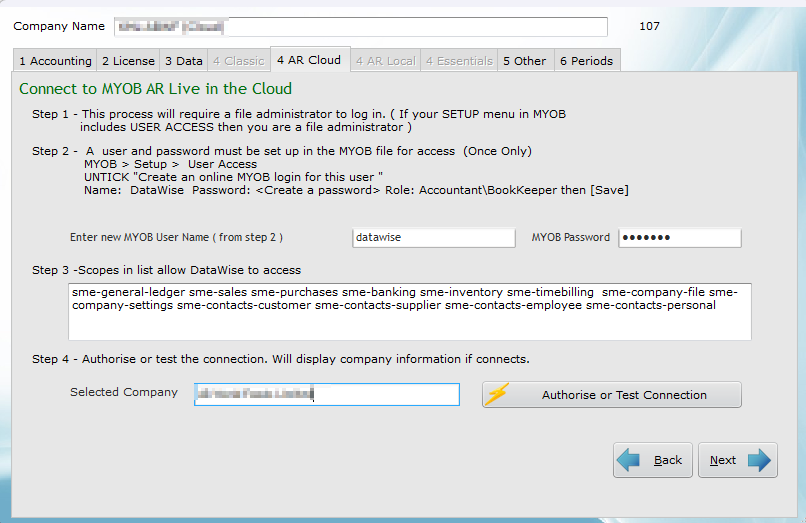
The new MYOB setup screen now includes:
- a user Name and password (as before, this user must be set up in your company file. If you are setting up this user for the first time, untick the option reading "Create an online MYOB login for this user").
Note: for browser-only versions of MYOB Business, the user name should be Administrator, and the password is blank. - a list of scopes (this list complies with MYOB's content and formatting requirements and is editable if scopes need to be added/deleted. This should be done on advice from DataWise support).
By default, we have added all scopes to cater for the range of reports. These can be reviewed at any time. - an [Authorise or Test Connection] button.
The list of files that used to be displayed has been removed from this window because the option to select a company file is now part of the "Authorise or Test Connection" button and authorisation process.
What you need to do:
If your file is currently authorised under the previous process, you will need to delete the API keys for that file. To do that, click Next to see the Other tab, and then select "Reset API tokens". No response will be provided. Then click Back, which will take you to the Data tab, then Next to return to the AR Cloud tab.
Select the [Authorise or Test connection] button:
- The admin user must now log in (MYOB login with 2FA credentials if necessary)
- Select your company from a drop-down list.
- Read the non-technical summary of the list of scopes to which the DataWise application is allowed to access. The list is presented for the user to accept or reject.
- Accept MYOB login option
To authorise the access for the selected company file, scroll to the end of the wiindow and click [Connect]. You may see a browser-style window pop up then disappear, but then you should see a display of company file information.
Please contact us if you have any problems:
Mike James - mike@datawise.co.nz
Mark Crichton - mark@datawise.co.nz
Was this article helpful?
That’s Great!
Thank you for your feedback
Sorry! We couldn't be helpful
Thank you for your feedback
Feedback sent
We appreciate your effort and will try to fix the article